Manage Student Course Sessions

Student Course Sessions Management
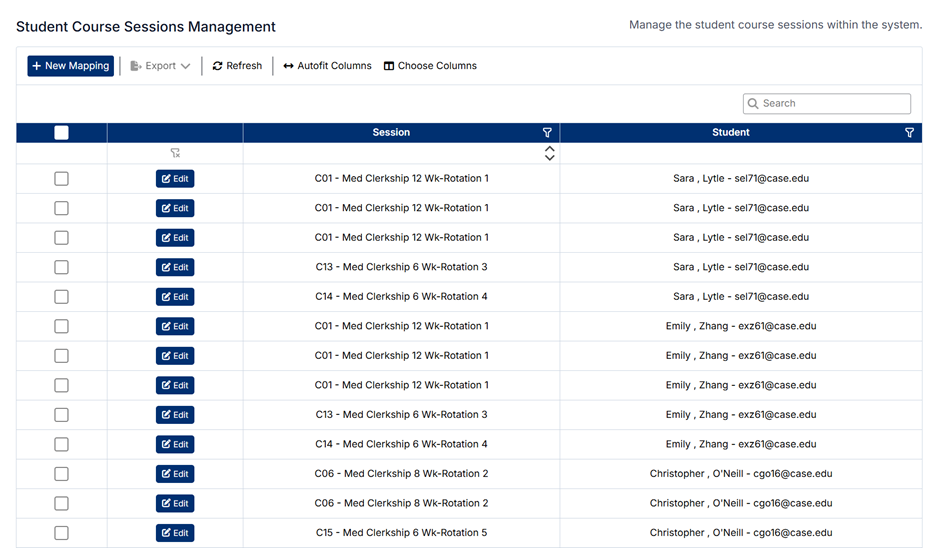
The Student Course Sessions Management screen allows administrators to assign students to specific course sessions. This mapping determines which sessions a student is enrolled in and defines their academic and clinical schedule.
Accessing Student Course Sessions
To access this screen:
- From the left-hand navigation menu, select Course
- Click Student Course Sessions
The screen displays all student-to-session mappings.
Understanding the Screen
- Data is displayed in a table with:
- Session (e.g., course name and rotation)
- Student Name and Email
- The toolbar includes:
- + New Mapping
- Export, Refresh, Autofit Columns, and Choose Columns
- The search bar allows filtering by student or session
- Each mapping can be edited using the Edit button
Relationships and Data Structure
Student Course Sessions connect students to the course delivery structure:
- Students (Users Module)
- Managed in Users → Students
- Course Sessions
- Created in Course → Course Sessions
- Define when and how a course is delivered
- Courses
- Sessions are linked to courses, which students are indirectly enrolled in
- Disciplines (via Courses)
- Students inherit discipline context from the course and session
This mapping ensures that students are correctly assigned to their scheduled rotations or academic sessions.
How Student Course Sessions Are Used
Student session assignments are used to:
- Define a student’s schedule and rotations
- Control what students see in their portal
- Enable patient logs and assessments within the correct context
- Align students with the correct courses, disciplines, and preceptors
- Support tracking, evaluation, and reporting
Creating a New Mapping
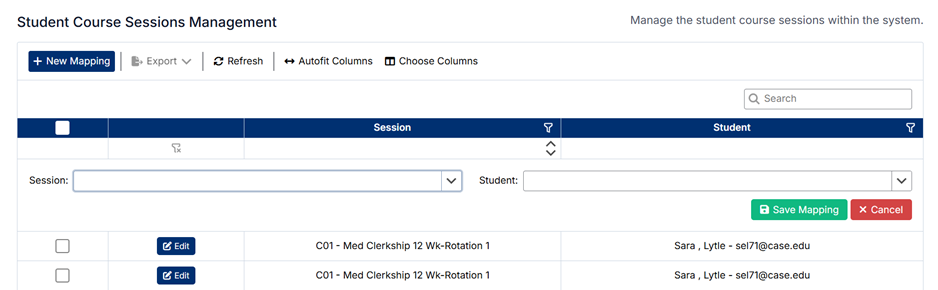
To assign a student to a course session:
- Click + New Mapping
- Select the Student
- Select the Course Session
- Click Save
The student will be assigned to the selected session.
Editing an Existing Mapping
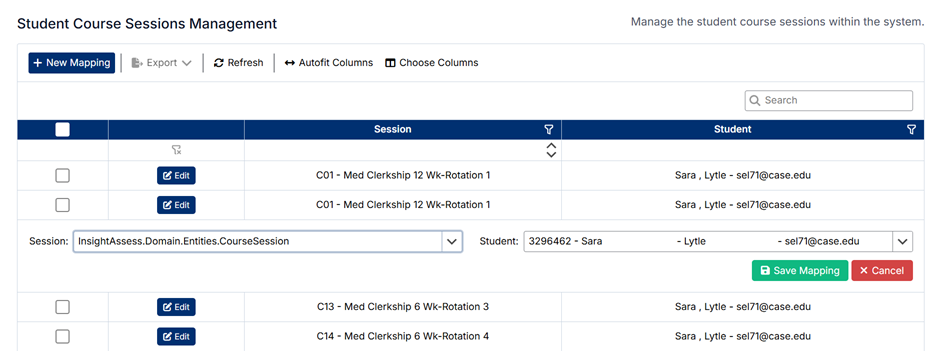
To edit a mapping:
- Locate the mapping in the list
- Click Edit
- Update the student or session as needed
- Click Save
Changes take effect immediately.
Deleting a Mapping
To delete a mapping:
- Select the checkbox next to the mapping(s)
- Click Delete (if available)
- Confirm the deletion
⚠️ Deleting a mapping removes the student from the session and may impact their access to related data, logs, and assessments.
Important Notes
- A student can be assigned to multiple course sessions
- Course sessions must be created before assigning students
- These mappings directly impact:
- Student schedules
- Assessment availability
- Preceptor interactions
- Ensure assignments are accurate to avoid issues with access and reporting
Proper configuration ensures that students are enrolled in the correct sessions and that all related academic and clinical workflows function correctly.
Created with the Personal Edition of HelpNDoc: Transform Your Help Documentation Process with a Help Authoring Tool