Manage Preceptor Disciplines

Preceptor Disciplines Management
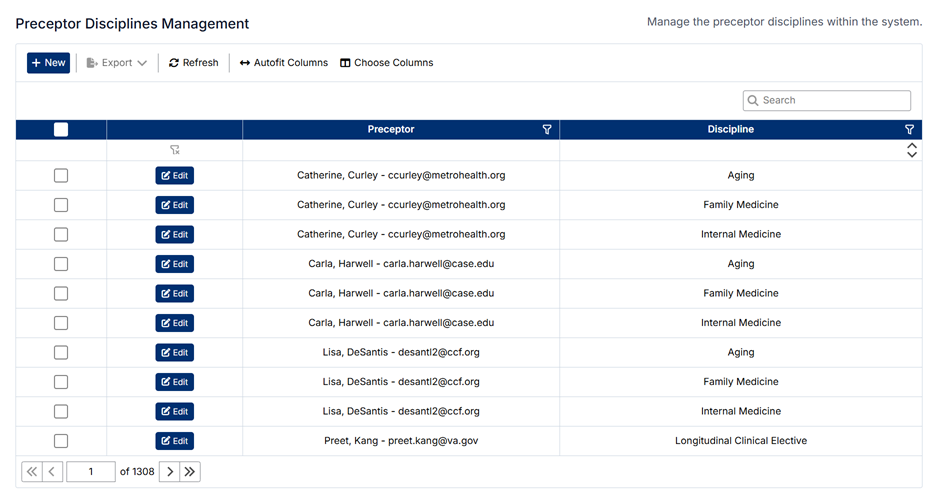
The Preceptor Disciplines Management screen allows administrators to assign preceptors to one or more disciplines. This mapping determines which clinical areas a preceptor is associated with and directly impacts their availability within the system.
Accessing Preceptor Disciplines
To access this screen:
- From the left-hand navigation menu, select Course
- Click Preceptor Disciplines
The screen displays all mappings between preceptors and disciplines.
Understanding the Screen
- Data is displayed in a table format with:
- Preceptor Name and Email
- Discipline
- The toolbar includes:
- + New
- Export, Refresh, Autofit Columns, and Choose Columns
- The search bar allows filtering by preceptor or discipline
- Each mapping can be edited using the Edit button
Relationships and Data Structure
Preceptor Disciplines link users to the clinical structure of the system:
- Preceptors (Users Module)
- Managed in Users → Preceptors
- Represent clinicians who supervise and assess students
- Disciplines (Clinical Module)
- Define clinical areas (e.g., Family Medicine, Internal Medicine)
- Managed in Clinical → Disciplines
- Courses and Course Disciplines
- Preceptors are associated with courses indirectly through discipline mappings
- Student Workflows
- Determines which preceptors are available when students:
- Create patient logs
- Request or complete assessments
This mapping ensures that preceptors are correctly aligned with their areas of expertise.
How Preceptor Disciplines Are Used
Preceptor discipline mappings are used to:
- Control which preceptors are available for selection by students
- Ensure assessments are completed by appropriate clinicians
- Define what preceptors see in their portal
- Align preceptors with relevant courses and disciplines
- Support accurate tracking and reporting
Creating a New Mapping
To assign a preceptor to a discipline:
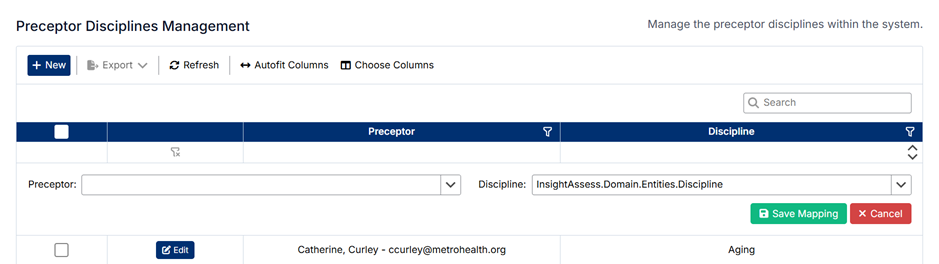
- Click + New
- Select the Preceptor
- Select the Discipline
- Click Save
The mapping will be added to the list.
Editing an Existing Mapping
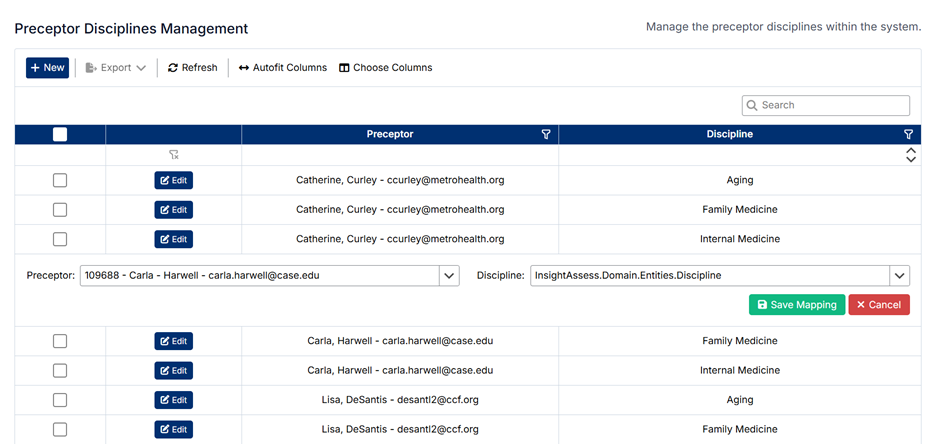
To edit a mapping:
- Locate the mapping in the list
- Click Edit
- Update the preceptor or discipline as needed
- Click Save
Changes take effect immediately.
Deleting a Mapping
To delete a mapping:
- Select the checkbox next to the mapping(s)
- Click Delete (if available)
- Confirm the deletion
⚠️ Deleting a mapping removes the association between the preceptor and discipline but does not delete the preceptor or discipline records.
Important Notes
- A preceptor can be assigned to multiple disciplines
- Preceptors must exist in Users → Preceptors before they can be mapped
- Disciplines must be created in Clinical → Disciplines
- These mappings directly affect:
- Student preceptor selection
- Assessment workflows
- Preceptor portal visibility
Proper configuration ensures that students interact with the correct preceptors and that clinical workflows function accurately.
Created with the Personal Edition of HelpNDoc: Easily create iPhone documentation