Manage Course Sessions

Course Sessions Management
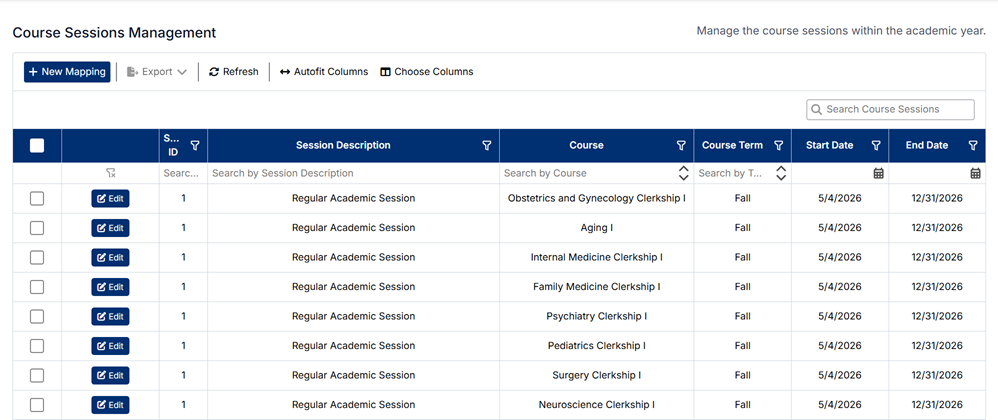
The Course Sessions Management screen allows administrators to create and manage individual course sessions. A course session represents a specific instance of a course delivered within a defined term and date range.
Accessing Course Sessions
To access this screen:
- From the left-hand navigation menu, select Course
- Click Course Sessions
The screen displays all configured course sessions.
Understanding the Screen
- Course sessions are displayed in a table with key details including:
- Session ID
- Session Description
- Course
- Course Term
- Start Date
- End Date
- The toolbar includes:
- + New Mapping
- Export, Refresh, Autofit Columns, and Choose Columns
- The search bar allows filtering by session description, course, or term
- Each session can be edited using the Edit button
Relationships and Data Structure
Course Sessions are a central component that connect multiple parts of the system:
- Courses
- Each session is linked to a specific course
- Terms
- Sessions are assigned to a term (e.g., Fall, Spring)
- Academic Years
- Through terms, sessions are tied to an academic year
- Campuses & Locations
- Sessions may be associated with specific campuses and locations (if configured)
- Students (Student Course Sessions)
- Students are enrolled into course sessions
- Disciplines (via Courses)
- Sessions inherit discipline mappings from the associated course
This structure ensures that sessions define when and how a course is delivered.
How Course Sessions Are Used
Course sessions are used to:
- Schedule course delivery periods
- Define start and end dates for rotations or courses
- Organize students into specific cohorts or groups
- Enable student enrollment and tracking
- Support reporting and academic planning
Creating a New Course Session
To create a new session:
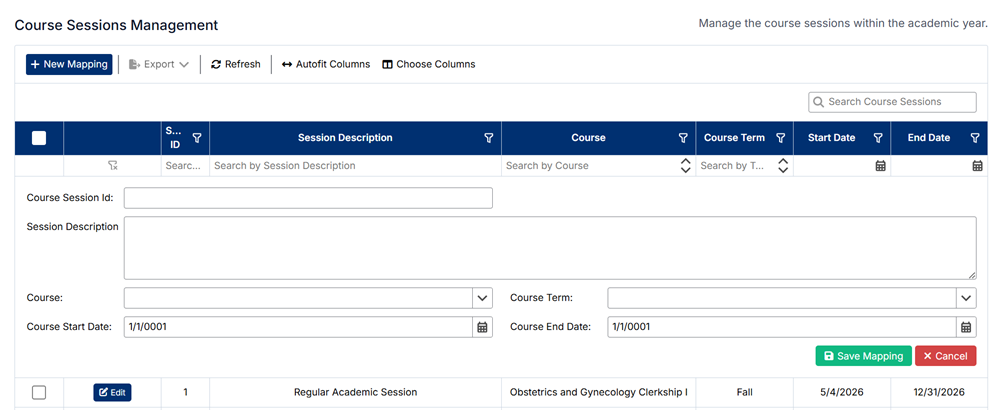
- Click + New Mapping
- Enter the session details:
- Session Description
- Course
- Course Term
- Start Date
- End Date
- Configure any additional required fields
- Click Save
The new session will appear in the list.
Editing an Existing Course Session
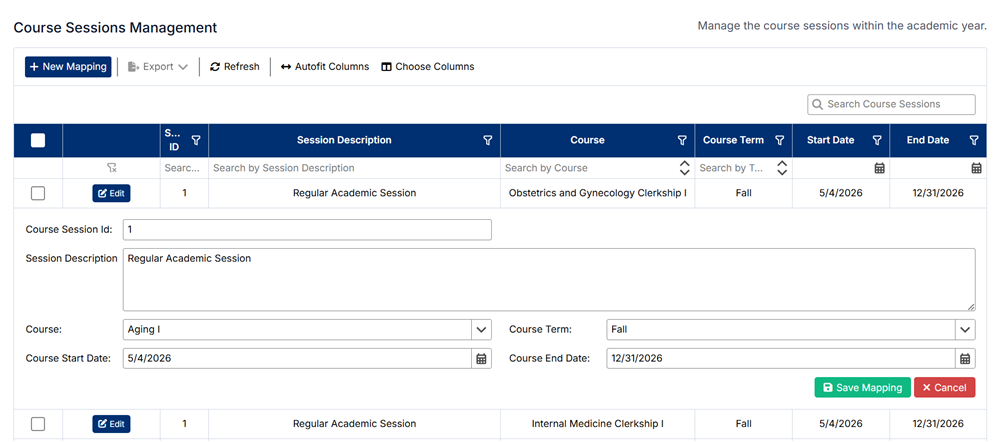
To edit a session:
- Locate the session in the list
- Click Edit
- Update the session details as needed
- Click Save
Changes are applied immediately.
Deleting Course Sessions
To delete a session:
- Select the checkbox next to the session(s)
- Click Delete (if available)
- Confirm the deletion
⚠️ Deleting a session will remove associated scheduling and may impact student enrollments.
Important Notes
- A course can have multiple sessions across different terms or time periods
- Sessions must be created before assigning students to courses
- Ensure dates and term assignments are accurate to avoid scheduling conflicts
- Changes to sessions may affect student participation, reporting, and downstream workflows
Proper setup of course sessions ensures accurate scheduling, student allocation, and smooth academic delivery.
Created with the Personal Edition of HelpNDoc: Streamline Your CHM Help File Creation with HelpNDoc