Manage Courses

Courses Management
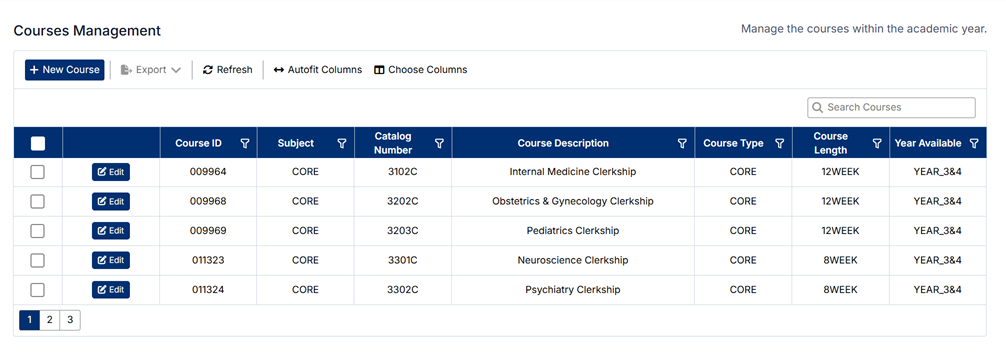
The Courses Management screen allows administrators to create and maintain course offerings within the system. Courses represent the core academic units that are delivered to students and form the foundation for sessions, scheduling, and enrollment.
Accessing Courses
To access the Courses Management screen:
- From the left-hand navigation menu, select Course
- Click Courses
The screen displays a list of all courses configured in the system.
Understanding the Screen
- Courses are displayed in a table with key details including:
- Course ID
- Subject
- Catalog Number
- Course Description
- Course Type
- Course Length
- Year Available
- The toolbar includes options such as New Course, Export, Refresh, and column configuration
- The search bar allows you to quickly locate a specific course
- Each course can be edited directly from the list
Relationships and Data Structure
Courses are central to the course module and are linked to multiple components within the system:
- Academic Years & Terms
- Courses are offered within specific academic years and terms
- Course Sessions
- A course can have multiple sessions representing different delivery periods or groups
- Course Disciplines
- Courses are associated with one or more disciplines to define the clinical or academic focus
- Clerkship Director Disciplines
- Used to map clinical disciplines relevant to the course
- Preceptor Disciplines
- Determines which preceptors are associated with the course
- Student Course Sessions
- Students are enrolled in course sessions, linking them back to the course
This structure ensures that courses act as the foundation for scheduling, delivery, and student participation.
How Courses Are Used
Courses are used throughout the system to:
- Define academic offerings
- Structure clinical and academic rotations
- Support session scheduling and delivery
- Enable student enrollment and tracking
- Drive reporting and academic planning
Creating a New Course
To create a new course:
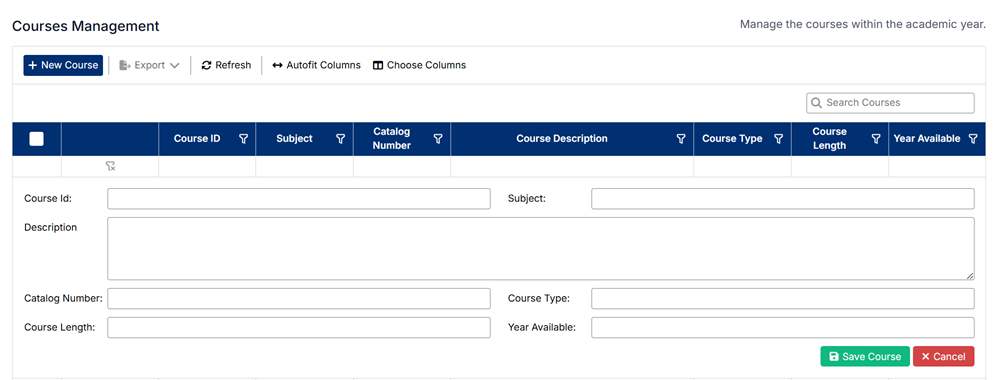
- Click + New Course
- Enter the required course details, including:
- Subject
- Catalog Number
- Course Description
- Course Type
- Course Length
- Year Available
- Configure any additional course information as required
- Click Save Course
The new course will appear in the list and be available for scheduling and assignment.
Editing an Existing Course
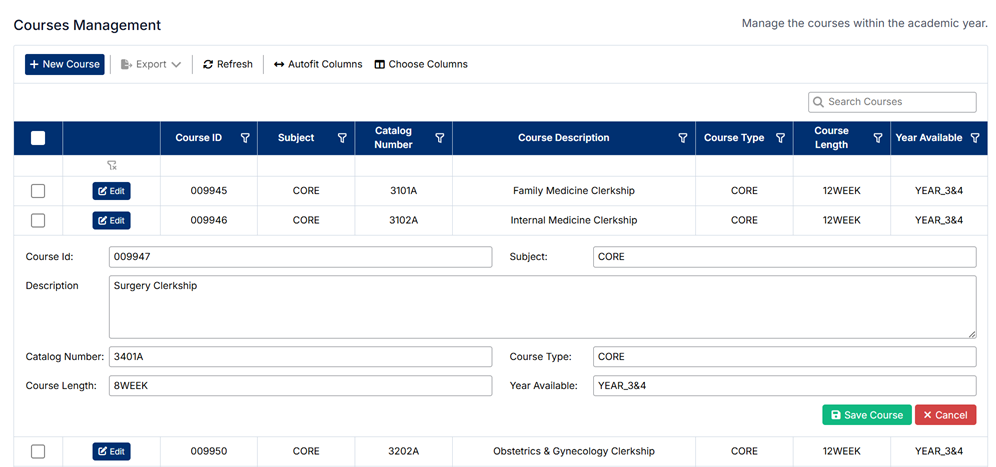
To edit a course:
- Locate the course in the list
- Click Edit
- Update the course details as needed
- Click Save Course
Changes will be applied immediately and reflected across all related areas.
Deleting Courses
⚠️ Courses cannot be deleted.
This restriction ensures data integrity, as courses are linked to:
- Course sessions
- Student enrollments
- Academic records and reporting
If a course is no longer active, it is recommended to leave it in the system for historical tracking.
Important Notes
- Courses must be properly configured before creating course sessions
- Ensure course details are accurate, as they are used across scheduling and reporting
- Changes to a course may impact sessions, enrollments, and related mappings
Proper course configuration ensures a consistent and structured approach to academic delivery within the system.
Created with the Personal Edition of HelpNDoc: Easily create HTML Help documents