Manage Students

Student Management
The Students section allows administrators to manage student user accounts and their associated information.
From this screen, you can:
- View student records
- Add new students
- Edit existing student details
- Delete student records
- Search and filter students
Accessing the Students Screen
To access the Students screen:
- From the left-hand navigation menu, click Users
- Select Students
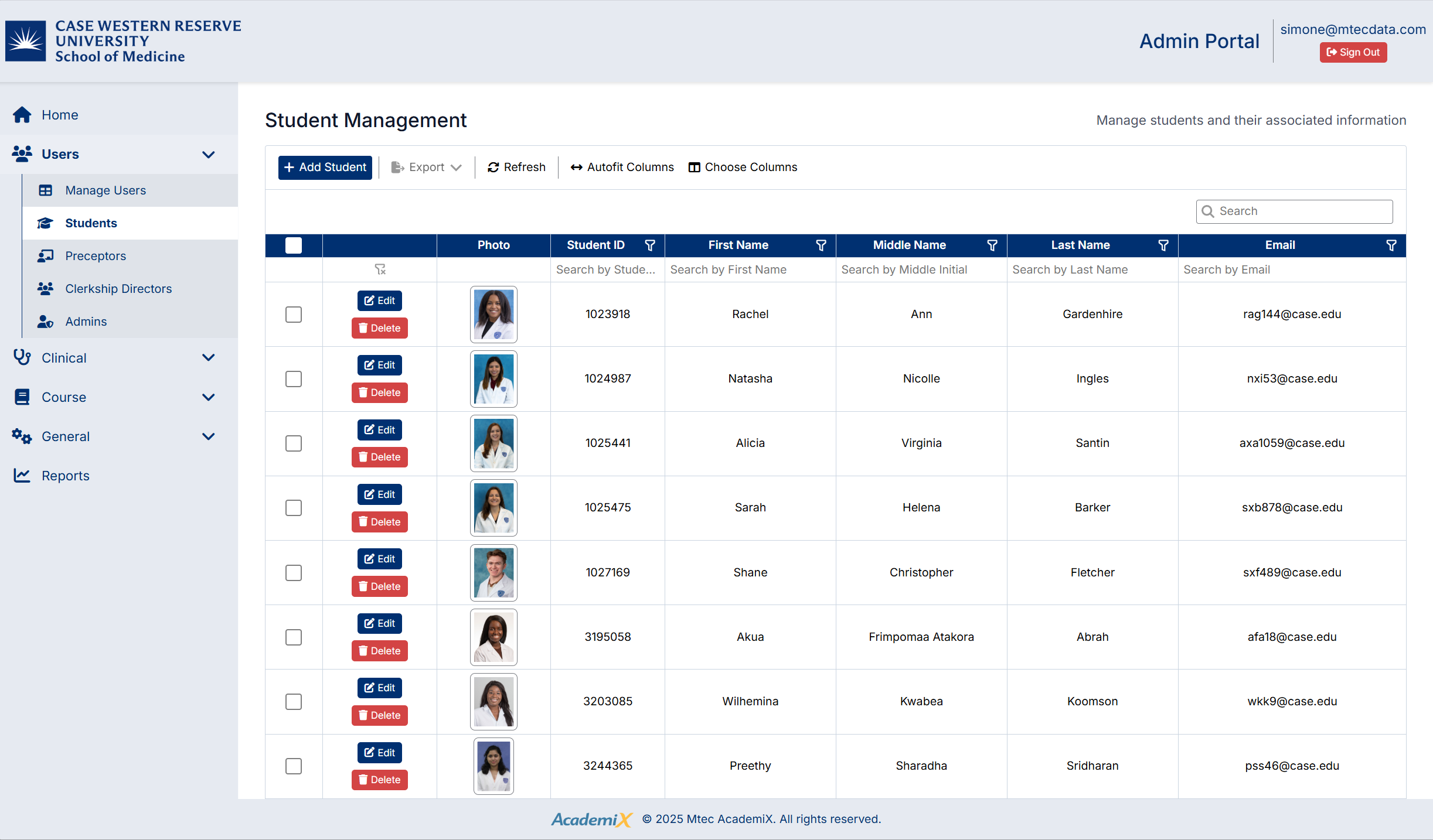
The Student Management screen will display a list of all students in the system.
Understanding the Students Screen
The Students screen includes:
- A toolbar with actions such as Add Student, Export, Refresh, and column settings
- A data grid displaying student records
- Search and filter options for locating specific students
- Action buttons for each record, including Edit and Delete
Creating a Student
To create a new student:
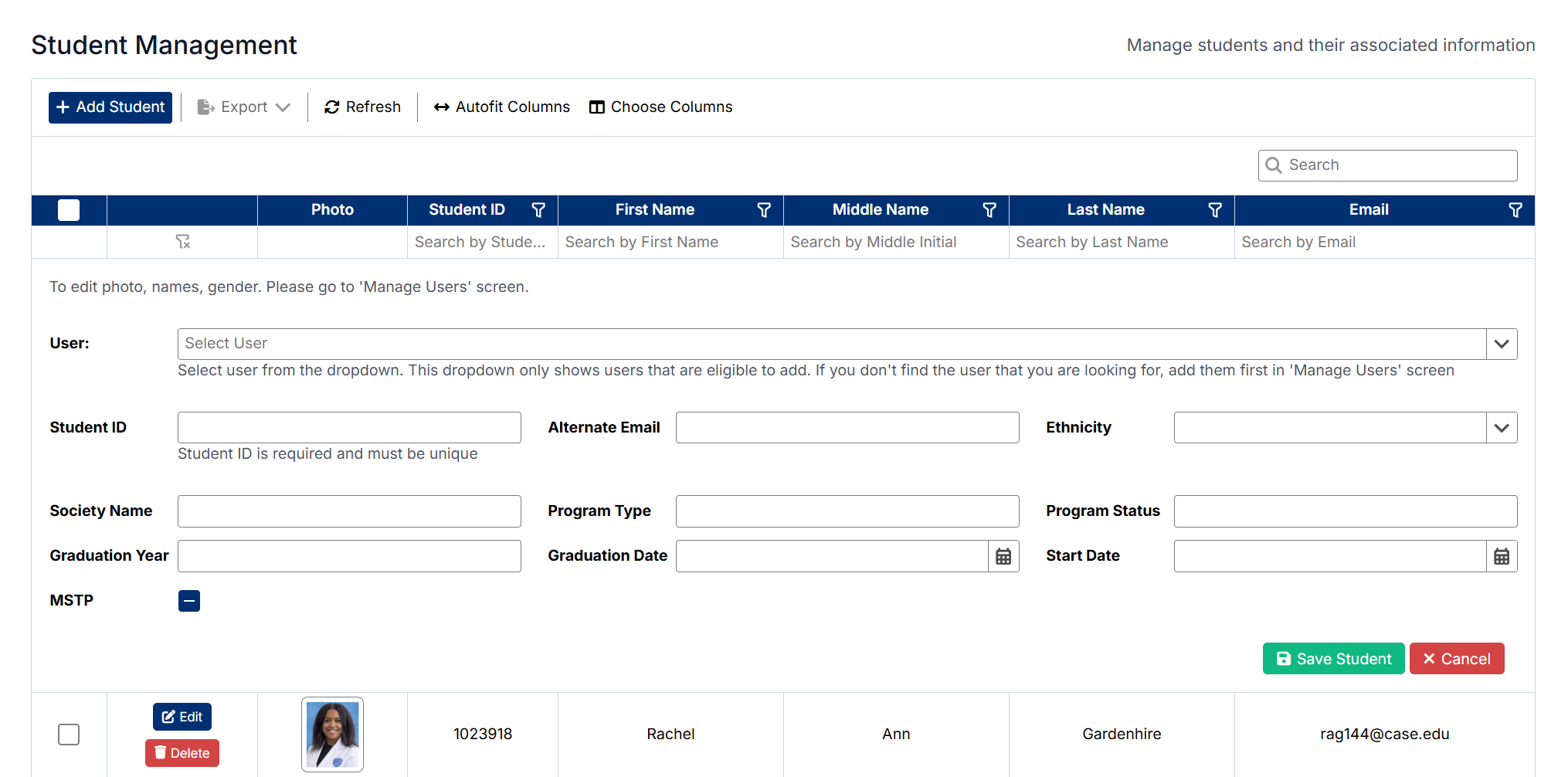
- Click Add Student
- Enter the required student information, including:
- Student ID (must be unique)
- Society Name
- Program Type
- Program Status
- Graduation Year and Date
- Start Date
- Additional fields as required
- Click Save Student
The new student will be added to the list.
Editing a Student
To edit an existing student:
- Locate the student in the list
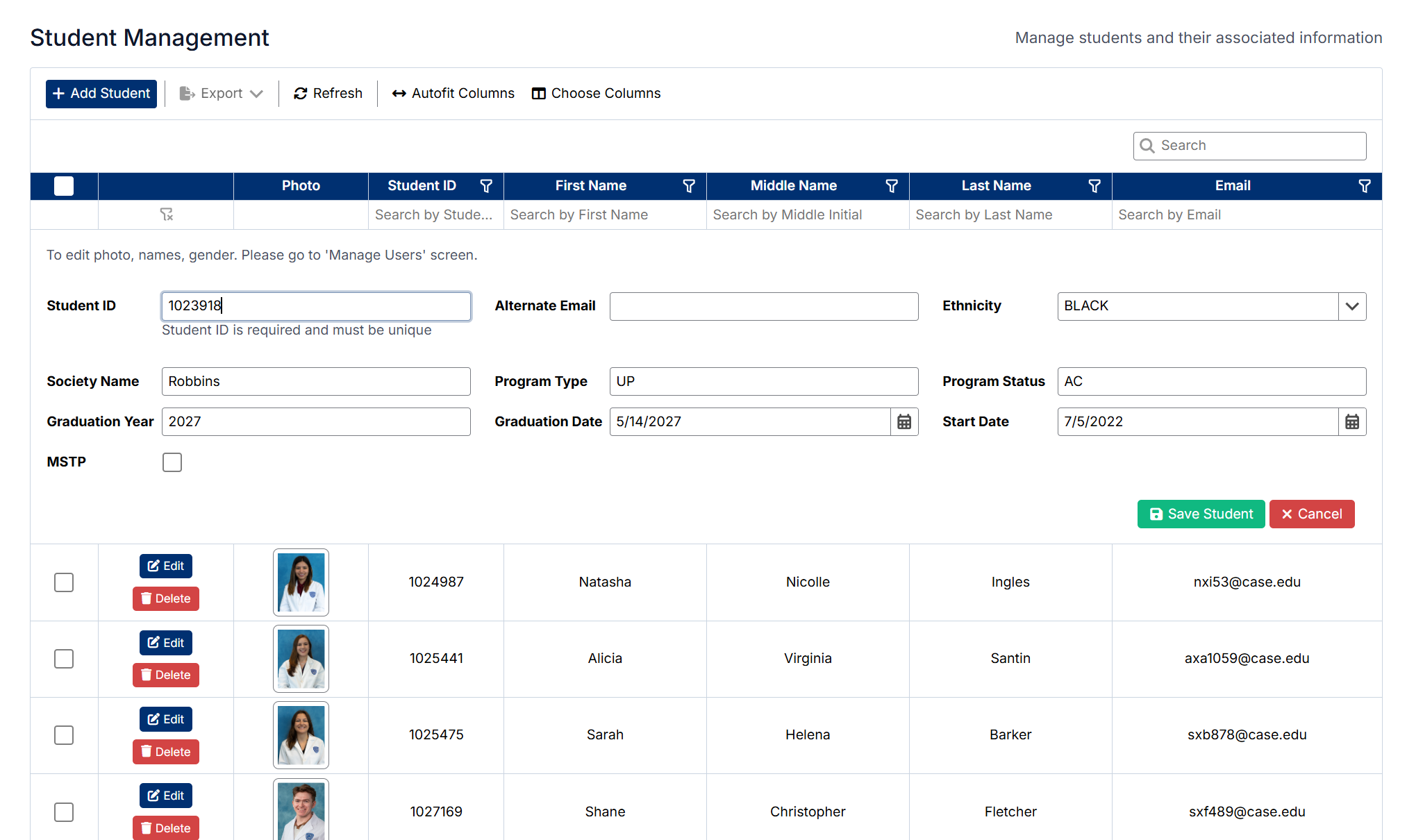
- Click Edit next to the student record
- Update the required fields, such as:
- Student ID
- Society Name
- Program Type and Status
- Graduation details
- Start Date
- Additional fields as required
- Click Save Student
The updated information will be saved and reflected in the student list.
Deleting a Student
To delete a student:
- Locate the student in the list
- Click Delete next to the student record
- Confirm the deletion when prompted
The student will be removed from the system.
Important Notes
- Student ID values must be unique
- Some fields may be required before saving
- To edit certain user details (such as name, photo, or gender), use the Manage Users screen
Created with the Personal Edition of HelpNDoc: Effortlessly Edit and Export Markdown Documents