Manage Disciplines

Disciplines
The Disciplines section allows administrators to define and manage clinical disciplines used throughout the system.
Disciplines are a key part of the clinical structure and are used to categorize activities, assessments, and reporting. They are also linked to preceptors and clerkship directors, which directly affects what they see and access within their respective portals.
Disciplines also influence:
- Which preceptors are available for students to select when creating patient logs
- How assessments are structured and assigned
- How clinical data is organized and reported
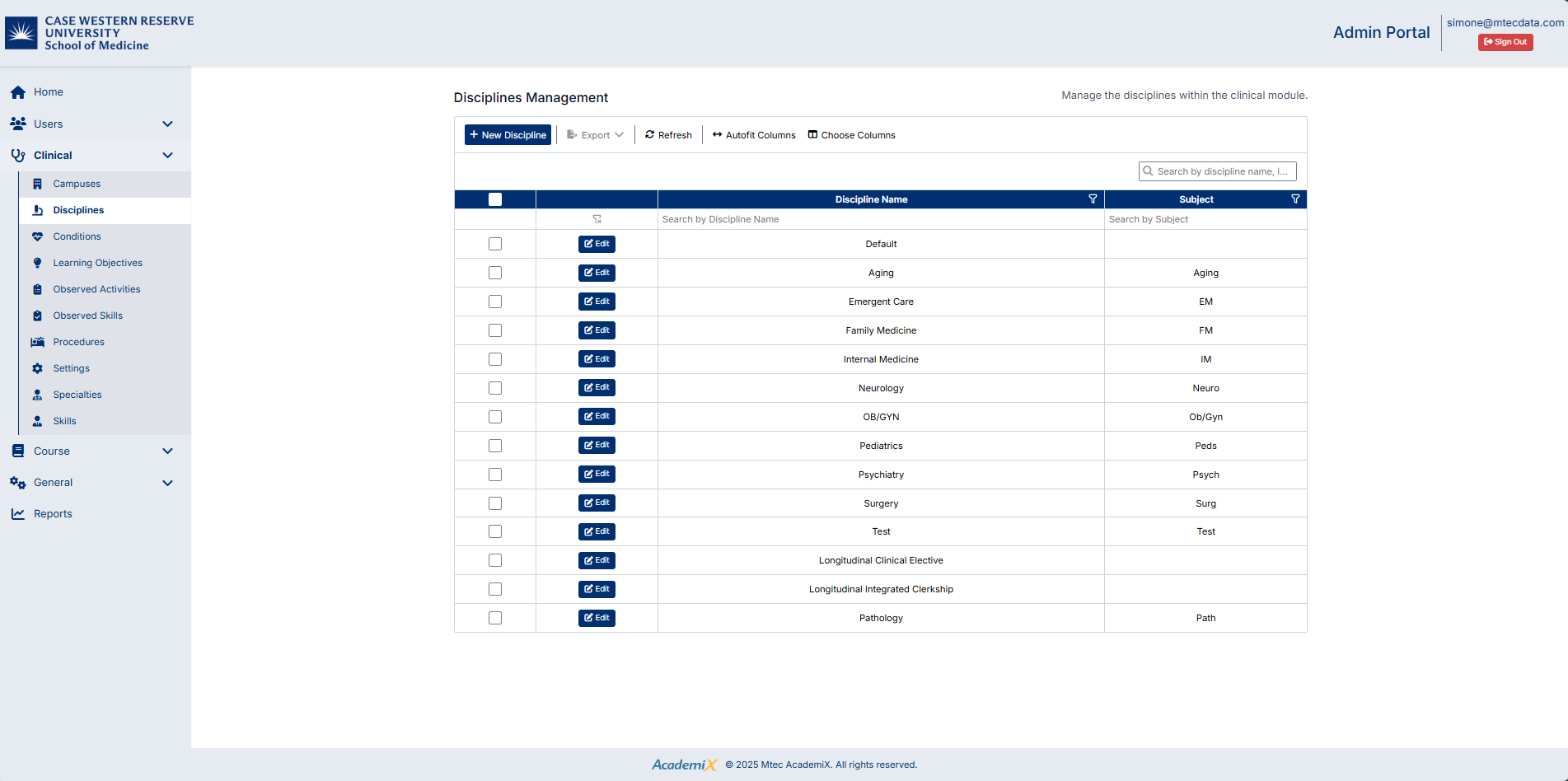
Accessing the Disciplines Screen
To access this screen:
- From the left-hand navigation menu, click Clinical
- Select Disciplines
The Disciplines Management screen will display a list of all disciplines in the system.
Understanding the Screen
The Disciplines screen includes:
- A toolbar with actions such as New Discipline, Export, Refresh, and column settings
- A data grid displaying discipline records
- Search and filter options for locating specific disciplines
- An Edit button for updating existing records
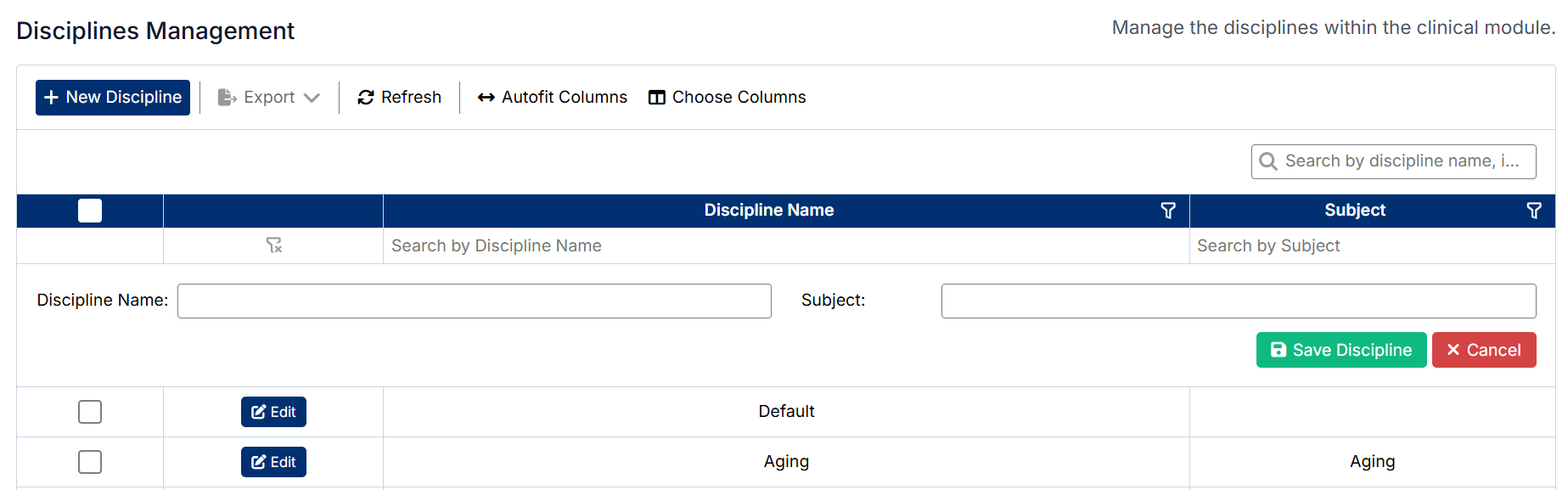
Creating a Discipline
To create a new discipline:
- Click New Discipline
- Enter the required information, including:
- Discipline Name
- Subject (if applicable)
- Save the record
The new discipline will be added to the list.
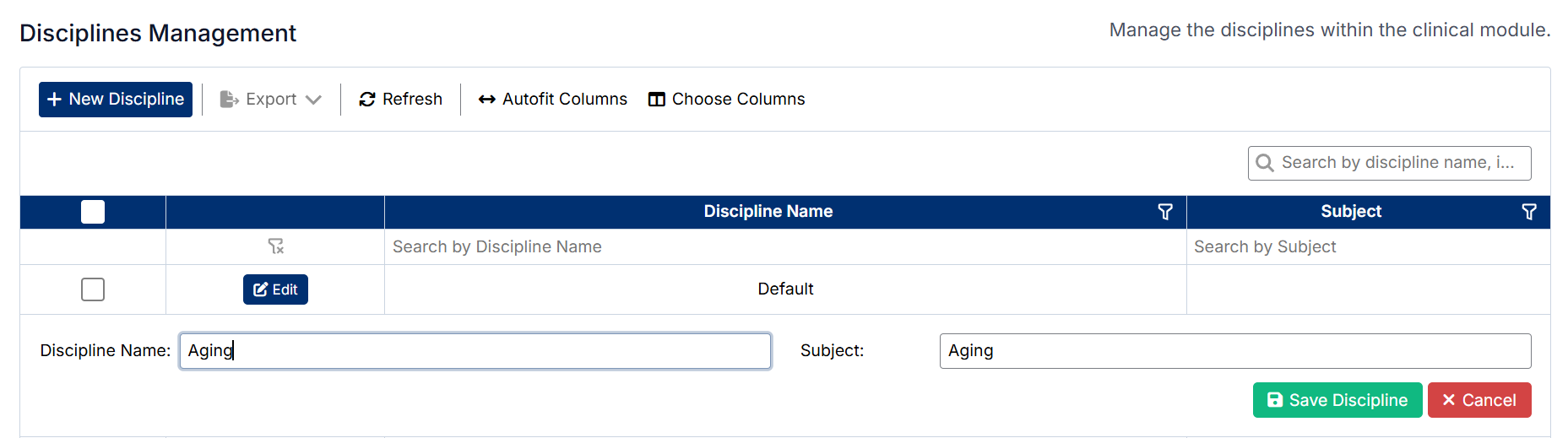
Editing a Discipline
To edit an existing discipline:
- Locate the discipline in the list
- Click Edit next to the record
- Update the required fields
- Save the changes
The updated information will be reflected in the list.
Important Notes
- Discipline names should be consistent, as they are used across clinical workflows and reporting
- Disciplines are linked to preceptors and clerkship directors, which determines what data and options are available to them in their portals
- Disciplines impact which preceptors students can select when creating patient logs
- Disciplines are also used in assessment workflows, affecting how evaluations are structured and assigned
Created with the Personal Edition of HelpNDoc: Maximize Your Documentation Output with HelpNDoc's Advanced Project Analyzer