Manage Settings

Clinical Settings Management
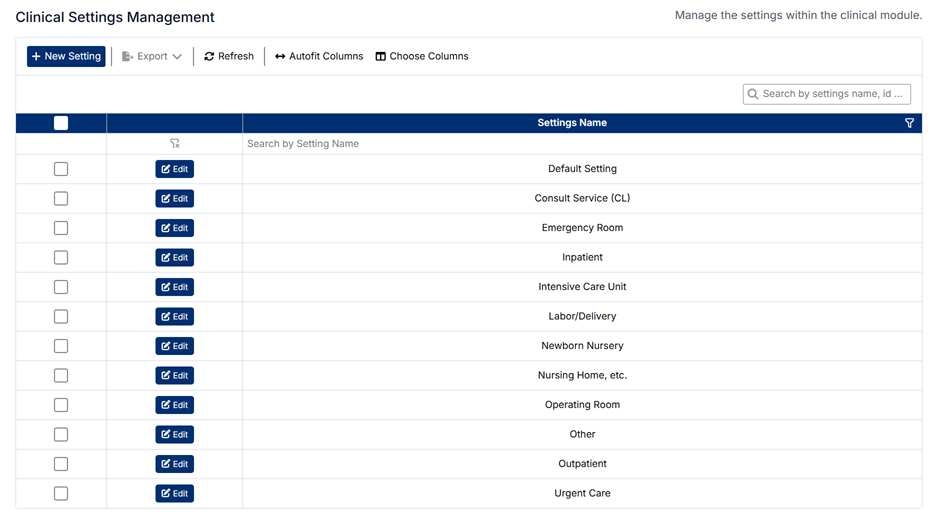
The Clinical Settings Management screen allows administrators to define and maintain the settings used within the clinical module. These settings represent the clinical environments or care settings in which activities, procedures, and assessments may take place.
Unlike other areas in the Clinical section, settings are not discipline-specific. They are maintained as a shared reference list and can be used across the entire clinical module.
Accessing Clinical Settings
To access the Clinical Settings Management screen:
- From the left-hand navigation menu, expand Clinical
- Select Settings
The screen displays a list of all clinical settings currently available in the system.
Understanding the Screen
- Settings are displayed in a single list
- The toolbar includes actions such as New Setting, Export, Refresh, and column settings
- The search bar can be used to locate a specific setting
- Each setting can be edited directly from the list
Because settings are not linked to a specific discipline, they are managed as a global list for the clinical module.
How Clinical Settings Are Used
Clinical settings are used to define the environment in which a clinical activity or assessment takes place.
Examples of settings may include:
- Emergency Room
- Inpatient
- Outpatient
- Operating Room
- Urgent Care
These values are used throughout the system to support consistent clinical data entry, tracking, and reporting.
Creating a New Setting
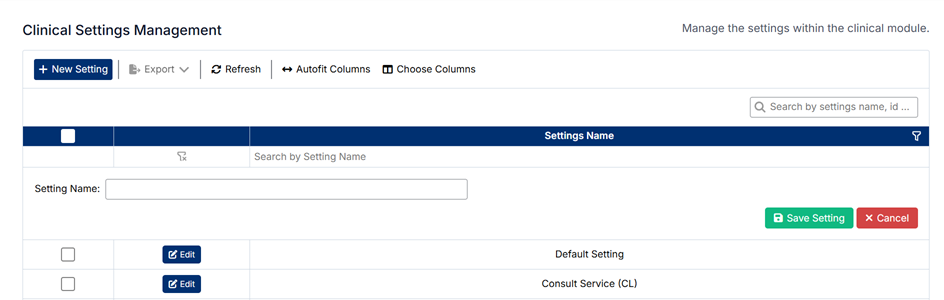
To create a new setting:
- Click + New Setting
- Enter the Setting Name
- Click Save Setting
The new setting will be added to the list.
Editing an Existing Setting
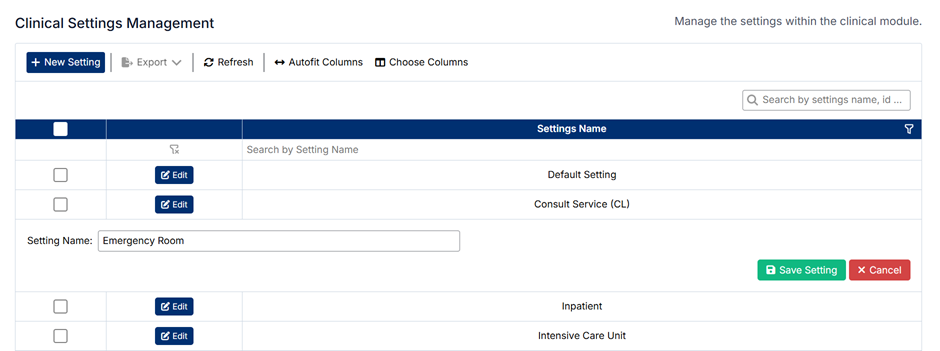
To edit a setting:
- Locate the setting in the list
- Click Edit
- Update the Setting Name
- Click Save Setting
Changes will be applied immediately and reflected wherever the setting is used.
Deleting Clinical Settings
⚠️ Clinical settings cannot be deleted.
This restriction ensures data integrity, as settings may be linked to:
- Existing patient logs
- Assessments and evaluations
- Historical reporting data
If a setting is no longer required, it is recommended to:
- Leave it unused going forward
- Or update its name if appropriate
Important Notes
- Clinical settings are shared across the clinical module and are not tied to a discipline
- Changes to settings may impact data entry, reporting, and historical records
- Ensure setting names are clear and consistent so users can select the correct clinical environment
Proper management of clinical settings helps maintain accurate and consistent clinical data across the system.
Created with the Personal Edition of HelpNDoc: Maximize Your CHM Help File Capabilities with HelpNDoc