Manage Ages

Ages Management
The Ages Management page allows administrators to define and maintain age group categories used throughout the system. These age groups are applied in clinical data capture, patient logs, and reporting to ensure consistent classification of age-related information.
Accessing Ages Management
To access this page:
- Navigate to General from the left-hand menu
- Select Ages
Understanding the Ages List
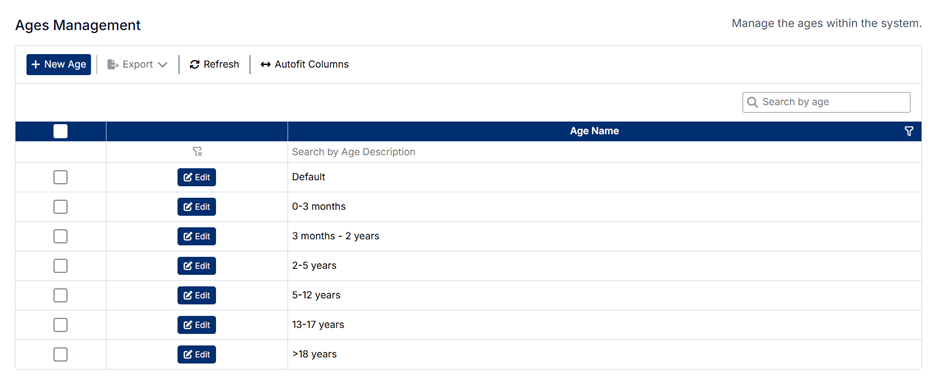
The Ages Management screen displays a list of configured age groups.
Key columns include:
- Age Name – The description of the age group (e.g., 0–3 months, 2–5 years)
- Edit – Allows you to modify an existing age group
You can also:
- Use the search bar to quickly find a specific age group
- Use column filters to refine the displayed results
Creating a New Age Group
To create a new age group:
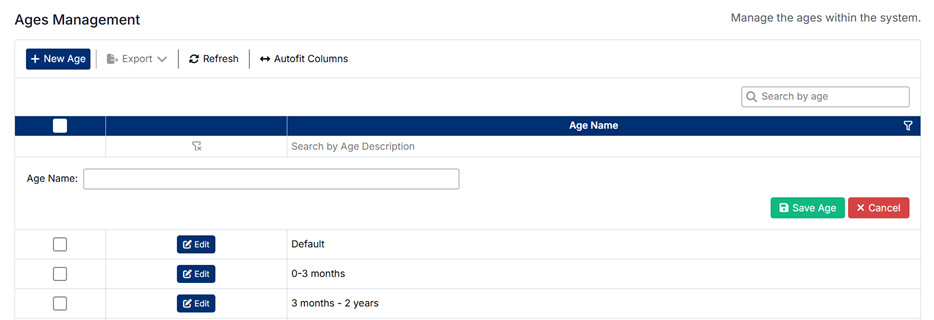
- Click + New Age
- Enter the Age Name (e.g., 18–25 years)
- Save the record
Editing an Age Group
To update an existing age group:
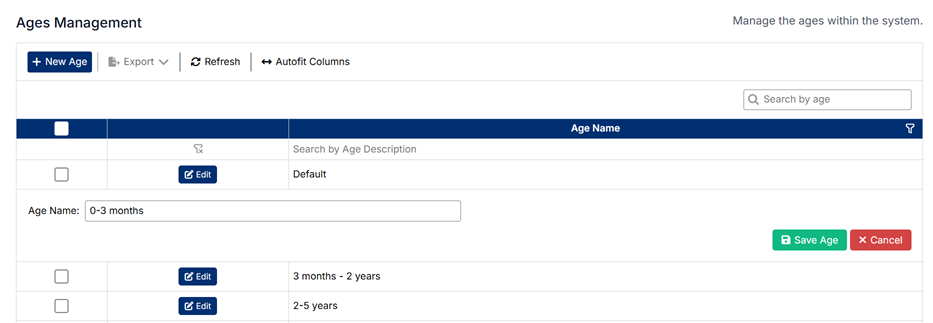
- Click Edit next to the relevant record
- Modify the Age Name
- Save your changes
How Age Groups Are Used
Age groups configured here are used across the system, including:
- Patient Logs – To categorize patients by age range
- Clinical Data Capture – Supporting structured input
- Reporting and Analytics – Enabling grouped analysis by age
Important Notes
- Age groups are global settings and apply across all modules
- Changes will impact how data is categorized and reported
- It is recommended to define all required age groups during initial system setup
- Maintain clear and consistent naming conventions for accurate reporting
Proper configuration of age groups ensures consistent and meaningful age-based data across the application.
Created with the Personal Edition of HelpNDoc: Create Professional CHM Help Files with HelpNDoc's Easy-to-Use Tool